
Student Kaplan Account access guide
This guide will show you how to use 2-step verification (2SV) so that you can sign in to your Student Kaplan Account. We’ll also show you how to reset your account if you need to.
How to sign into your Student Kaplan Account
After creating and verifying your account, you can sign in using your email address and password.
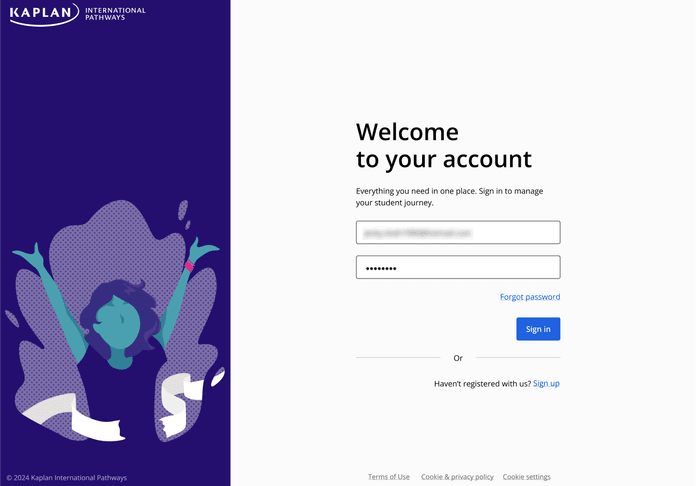
To complete the sign-in process, you’ll need to go through 2-step verification (2SV). Using 2SV adds extra security to your account.
How to use 2-step verification (2SV)
To use 2SV, you have to enter a verification code when you sign in. You can choose to get verification codes either by email or SMS / text message. You only need to use 2SV once every 45 days, and the devices you use to access your account will automatically remind you when you need to sign in using 2SV again.
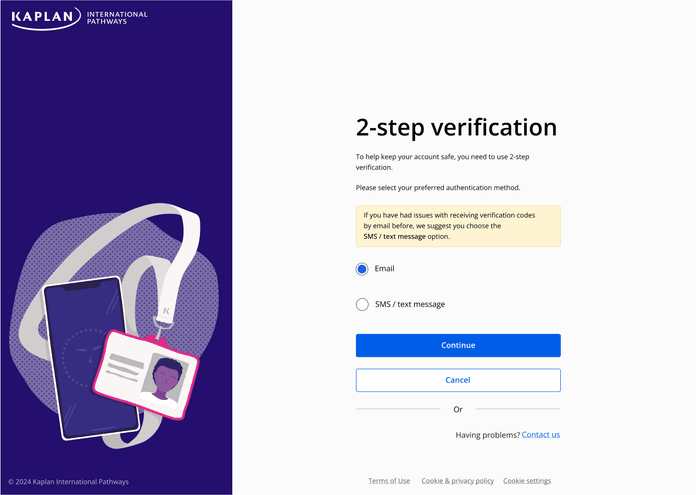
If you choose ‘Email’, we’ll send the verification code to the email address that you use when you sign into your Student Kaplan Account.
If you want to change the email address that’s linked to your account, you can change it in the ‘Manage Account’ section after you’ve signed in.
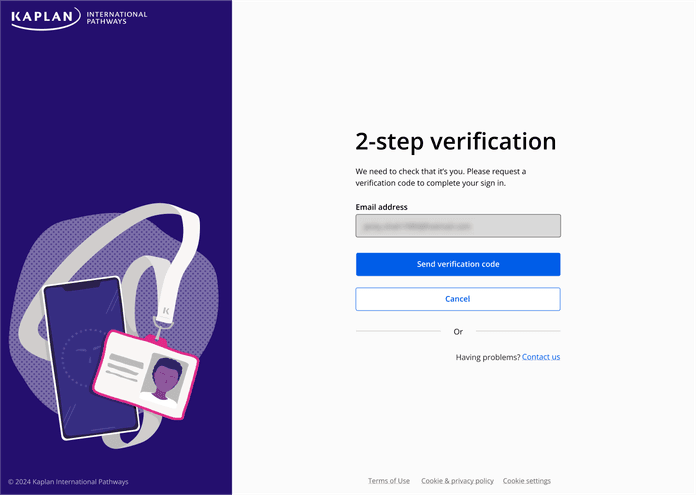
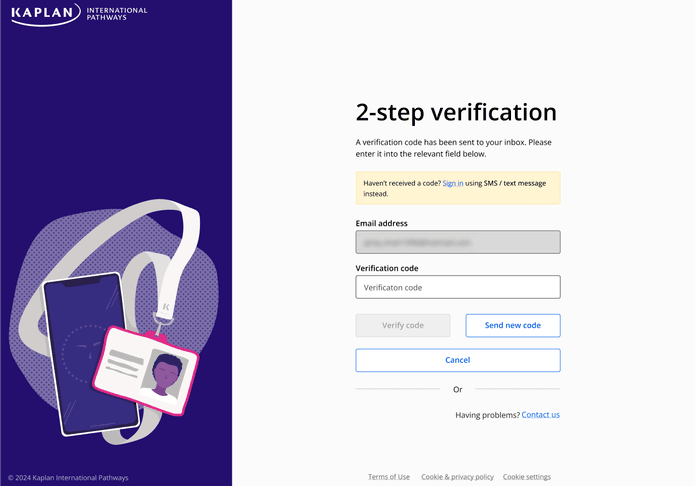
Sometimes, there might be a delay in getting your verification codes via email. This means that codes may expire before you’ve had a chance to use them.
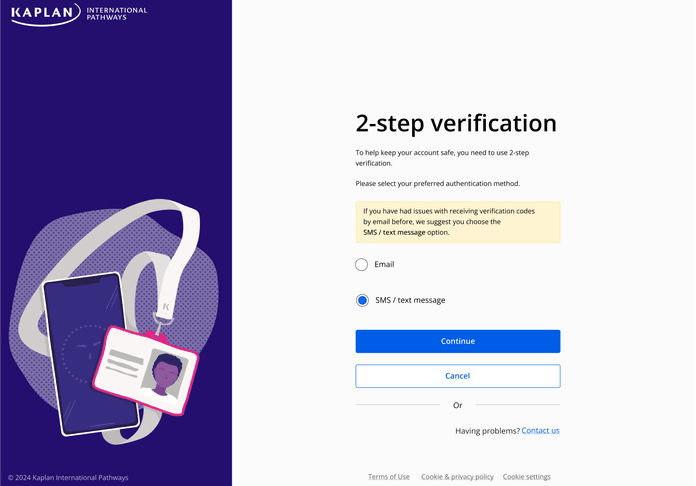
Below, you’ll see an alert in a yellow box that appears on the screen. If your email verification codes are being delayed, this will give you the chance to click on ‘sign in’ again and choose ‘SMS / text message’ as your verification code method.
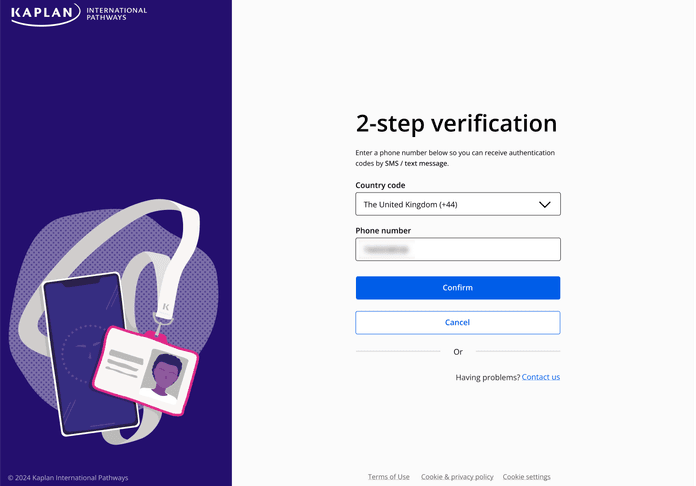
If you choose ‘SMS / text message’, we’ll send you the verification code in an SMS / text message to the phone number that you provide. This phone number will be remembered automatically for future sign ins.
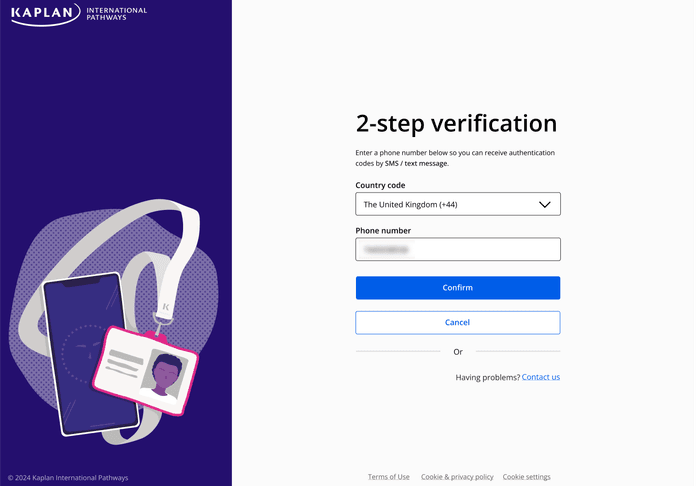
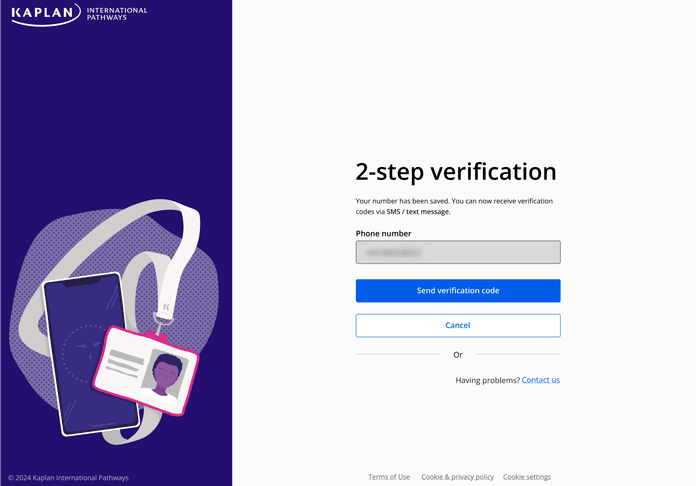
I’ve chosen to get my verification codes via email, but I’m not receiving them. What should I do?
First, you’ll need to go back to the 2-step verification screen. Once you’re there, click the ‘Cancel’ button.
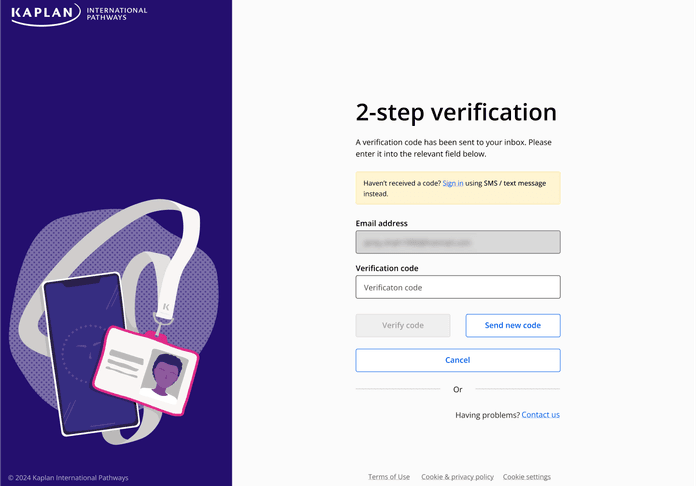
You will then have to sign in again by choosing the ‘SMS / text message’ option.

I want to get verification codes sent to a new phone number. How do I change my saved number?
If you have a new phone number and want to change the saved number that you currently use, click on ‘Change phone number’ on the 2-step verification screen.
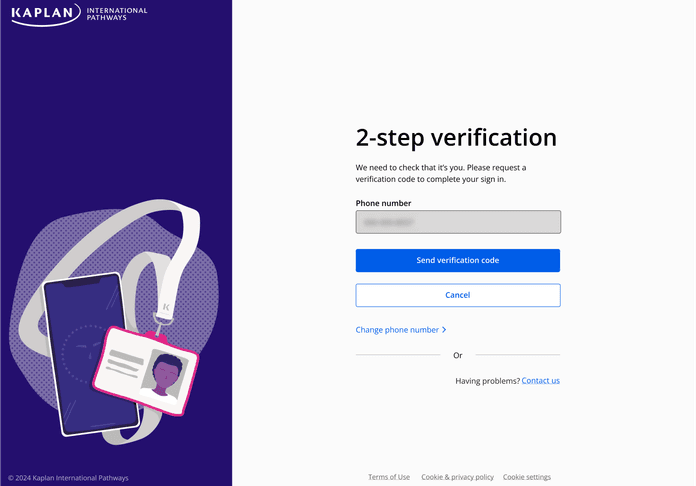
For security reasons, you’ll have to enter your password again. We’ll also send a verification code to the current saved phone number.
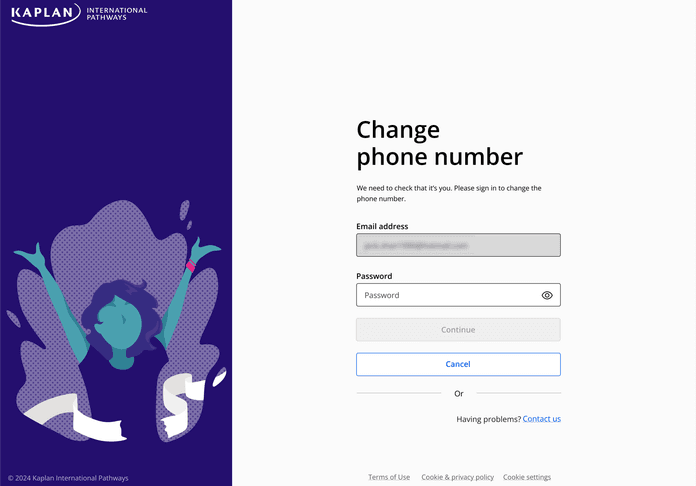
After that, you can add a new phone number.
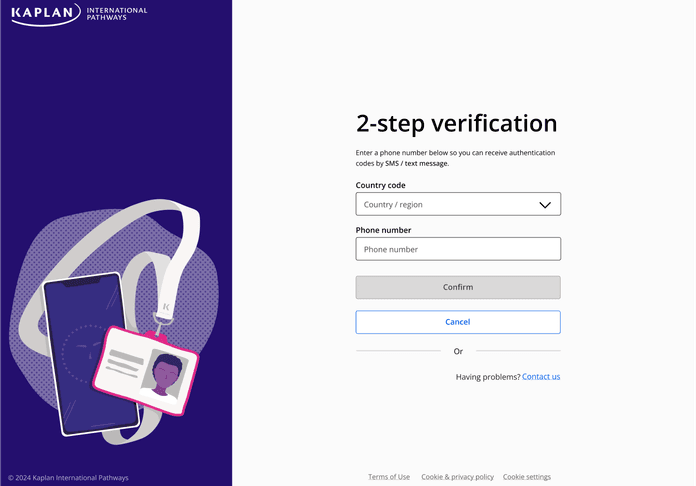
What if I don’t have access to the saved phone number anymore?
You’ll have to reset your account. To do this, click on ‘Change phone number’ and then click on the ‘Reset account’ button.
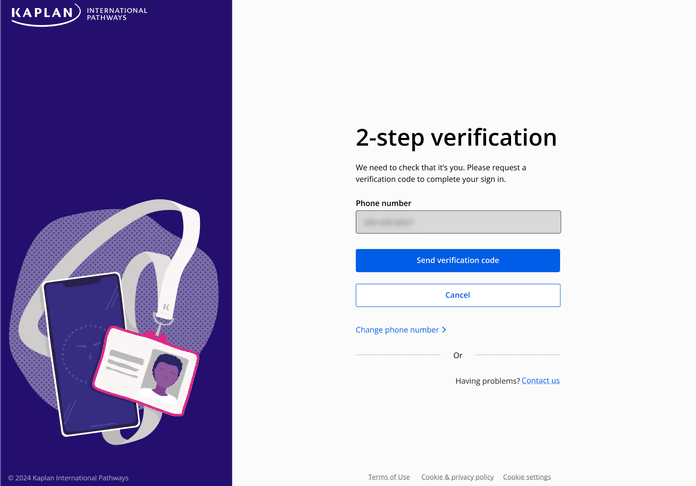
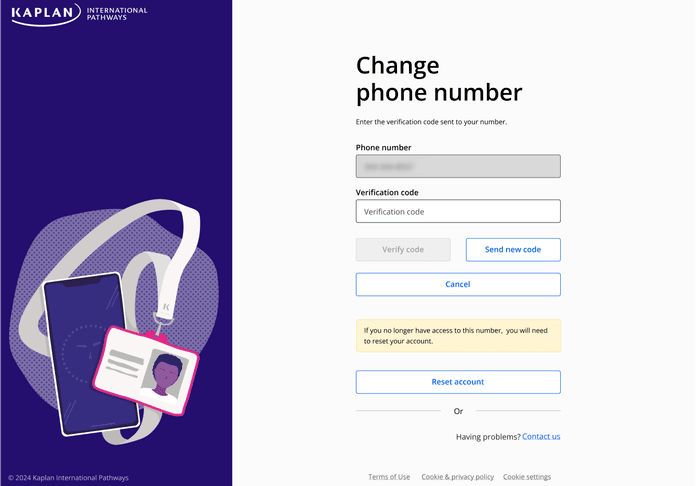
We’ll then send an email to the email address that you use when you sign into your Student Kaplan Account. This email will contain a link asking you to verify your request to reset your account. When you click the ‘Reset account’ button, you’ll have 1 hour to reset your account.
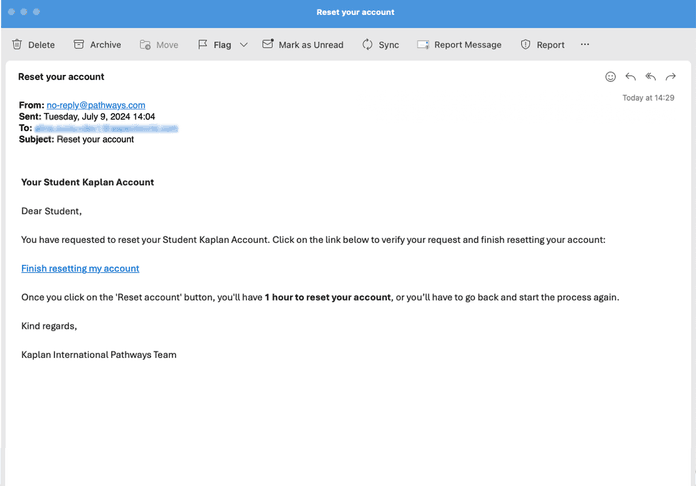
When you’ve completed these steps, you’ll need to create a new account and follow the instructions on-screen.
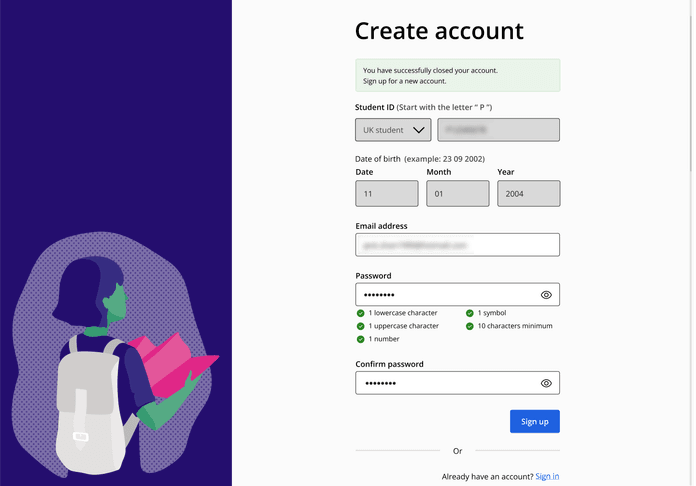
After that, sign in and select the ‘SMS / text message’ option for 2-step verification. You can then add a new phone number.
We’re here to help
If you have any questions about accessing your Student Kaplan Account, please contact us at: